Copyright © 2026 Cahaba Forge LLC. All rights reserved.
Cahaba Forge™ is a trademark of Cahaba Forge LLC.
Atlassian, Jira, and Forge are trademarks of Atlassian Pty Ltd.
Table of Contents
Overview
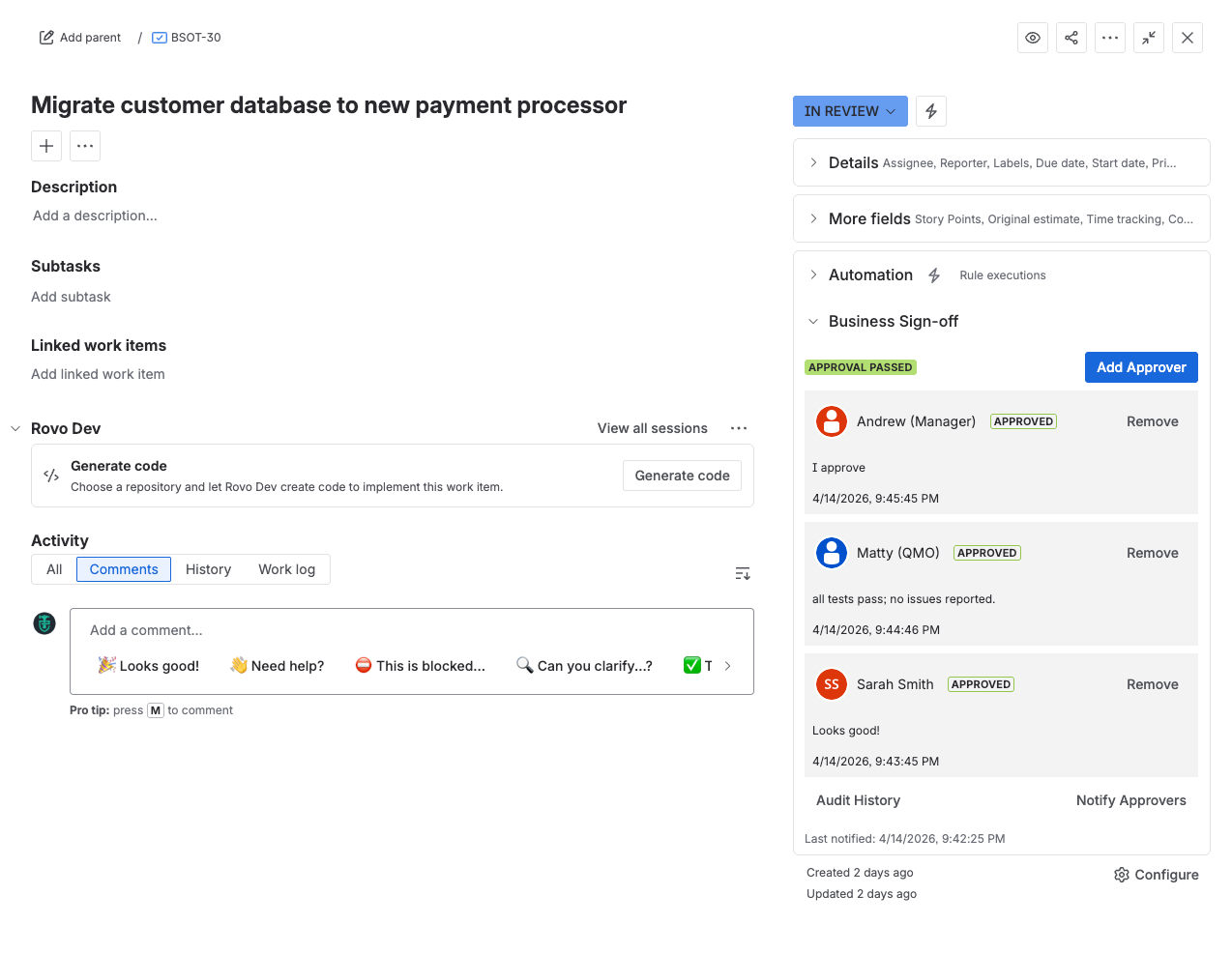
Business Sign-off adds a Jira-native approval panel directly to supported Jira issues in Jira Cloud. From the issue view, users can:
- see the current approval state
- review the current list of approvers
- add or remove approvers, if allowed by project configuration
- notify approvers when work is ready for review
- approve, return, change, or withdraw their own decision
- review an issue-level audit history of approval activity
In Jira Cloud, Business Sign-off is surfaced through the issue view, Jira administration, project settings, workflow conditions, workflow validators, workflow post-functions, and two read-only synced custom fields.
What's Changed from the Data Center Version
If you used the Data Center version, these are the changes that matter most:
- Installation is now Cloud-first. You install the app from Atlassian Marketplace or your Cloud distribution flow, not by uploading a JAR through Universal Plugin Manager.
- The panel remains on the issue view, but the platform is different. The app now runs on Atlassian Forge and uses Jira Cloud extension points instead of a server-side plugin.
- The approver decision vocabulary is the same. Both the Cloud and Data Center versions use Return for sending work back for changes.
- The overall status model changed slightly. In Cloud, an issue can show Not Started when approvers exist but none have been notified yet.
- The BSO custom fields are synced, read-only Cloud fields. They are no longer a place where the app itself provides custom editing UI. The live approver workflow happens in the issue panel and through workflow post-functions.
- The old custom JQL functions from Data Center are not part of the Forge version. In Cloud, use synced fields such as BSO - Status in Jira search and reporting instead.
- Global and project configuration moved to Jira Cloud app locations.
Global configuration: Jira administration under Apps
Project configuration: Project settings → Apps - No server-side configuration exists. There are no filesystem changes, database changes, or server console steps in the Cloud version.
- Audit and compliance records are still core to the product. The Forge version keeps issue-level approval history, synced fields, and audit export features, but the storage model is Atlassian-hosted rather than Data Center-hosted.
Before You Start
Business Sign-off must already be installed and enabled by your Jira administrator.
If you do not see the Business Sign-off panel on an issue where you expect it, check with your Jira administrator or see the Administrator Guide.
Where the App Appears in Jira Cloud
After your Jira administrator installs and configures the app, users will see Business Sign-off in these Jira Cloud locations:
- Issue view: the Business Sign-off panel appears in the issue context area on supported issue types
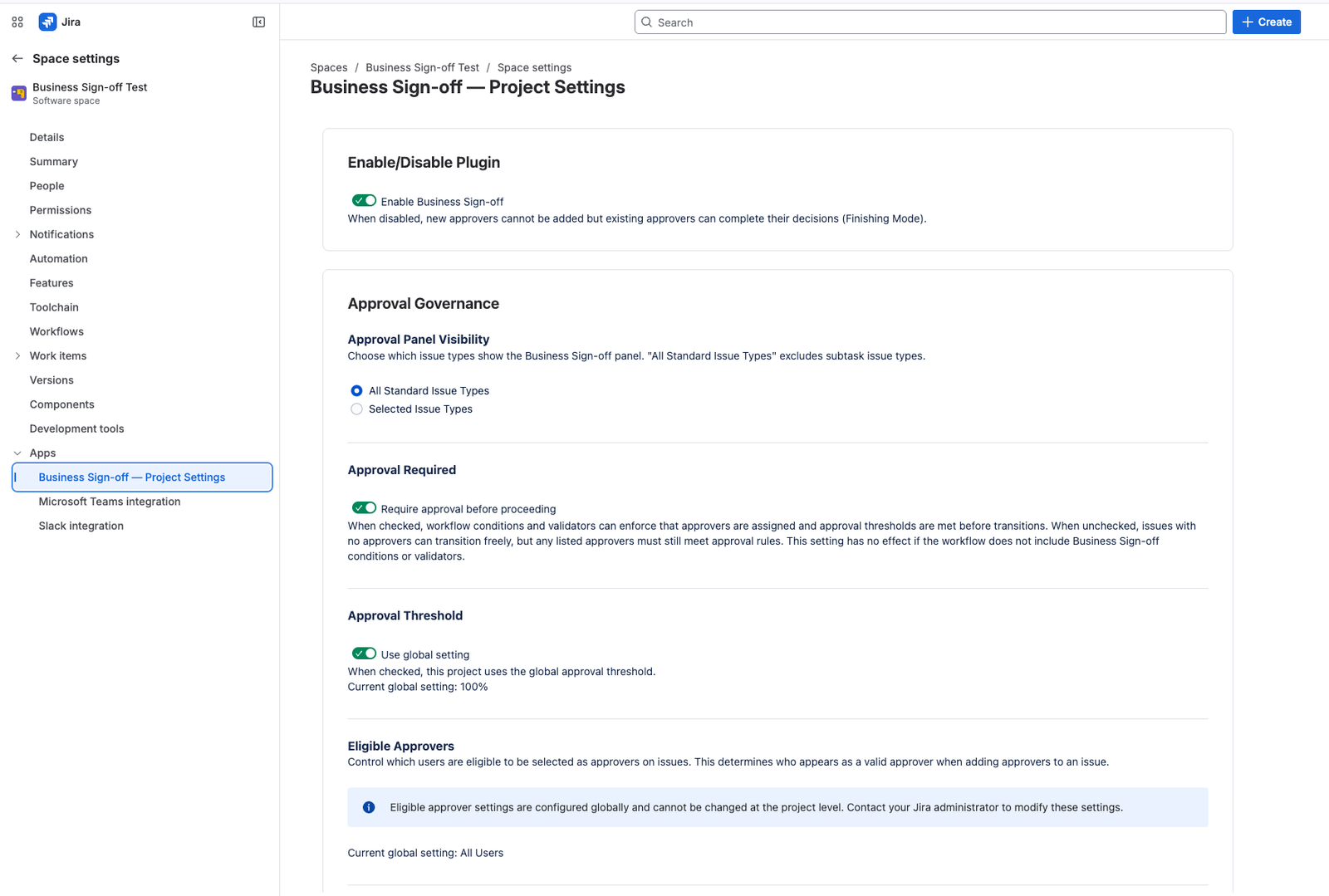
- Project settings: project-level configuration page under Apps
- Jira administration: global configuration page under Apps
- Workflow editor: Business Sign-off workflow conditions, validators, and post-functions
- Dashboards: two gadgets, BSO - My Approval Queue and BSO - My Approval Requests
- Custom fields:
- BSO - Approvers
- BSO - Status
Using Business Sign-off on an Issue
Open the Business Sign-off Panel
When Business Sign-off is enabled for the project and the current issue type is included in the project configuration, the panel appears on the Jira issue view.
If the panel does not appear, common reasons include:
- the app is not enabled globally
- the app is not enabled for the current project
- the current issue type is excluded by project settings
- the project is in full disable mode
- the issue is a subtask and the project is configured for All Standard Issue Types
Understand Approval Status
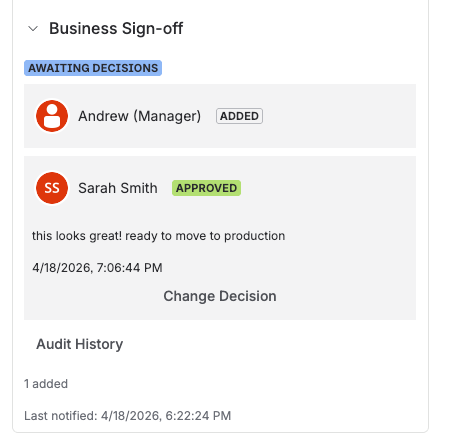
Individual approver statuses
Each approver has one of these statuses:
| Status | Meaning |
|---|---|
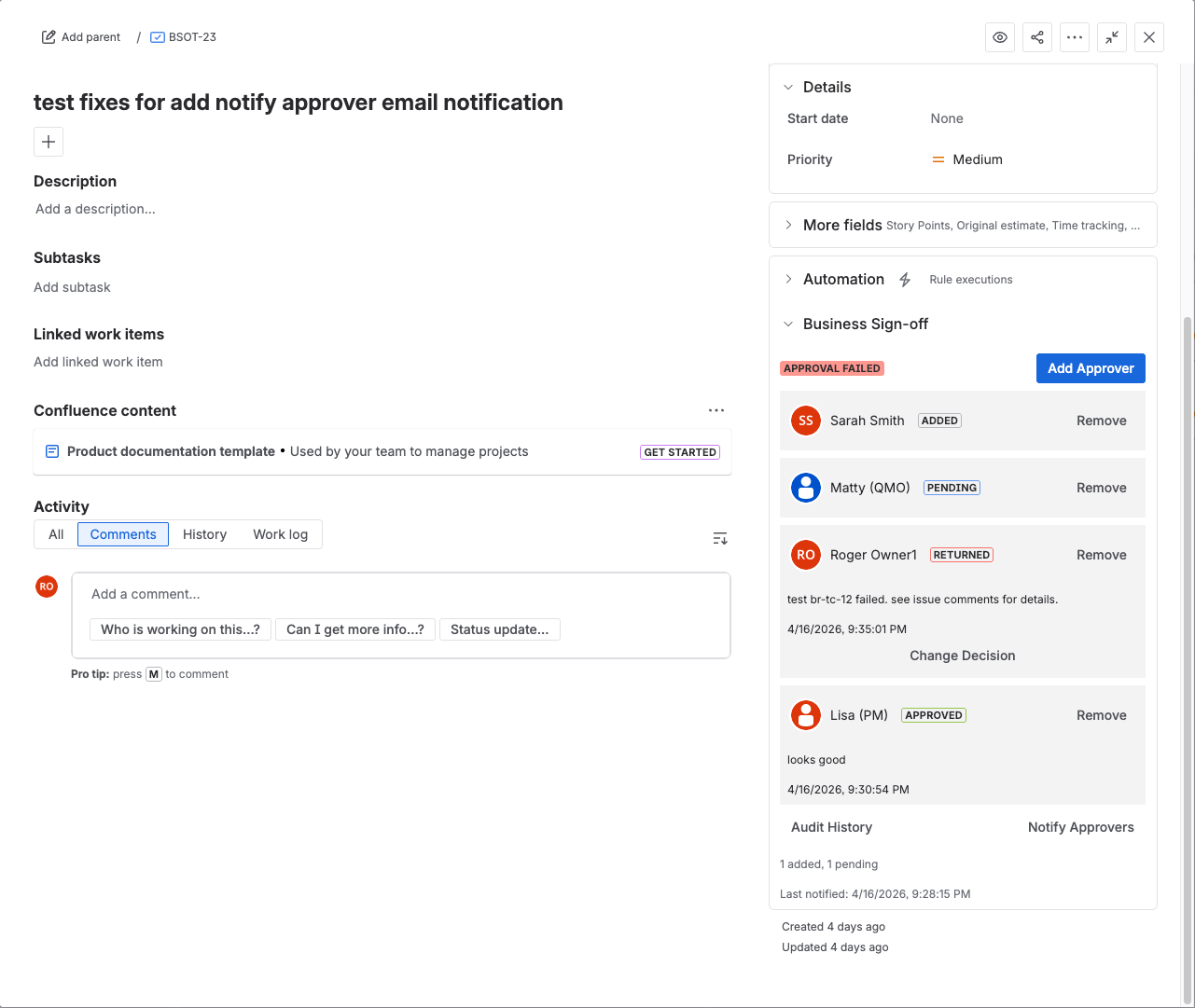
| Added | The approver has been assigned but has not yet been notified for review. |
| Pending | The approver has been notified and can now approve or return the issue. |
| Approved | The approver has approved the issue. |
| Returned | The approver has returned the issue for changes. |
Overall issue statuses
The issue-level approval status shown in the panel and BSO - Status field can be:
| Status | Meaning |
|---|---|
| Not Started | Approvers exist, but none have been notified yet. |
| Awaiting Decisions | Review is in progress and no return has occurred yet. |
| Approval Passed | The configured threshold has been met with approvals. |
| Approval Failed | The approved percentage does not meet the configured threshold. |
The overall status is determined by whether the approved percentage meets the configured threshold. A Returned decision does not automatically fail the issue — it only contributes to the approval calculation like any non-approval.
Example with a 75% threshold and 4 approvers:
- 3 Approved, 1 Pending = Approval Passed (75% ≥ 75%)
- 2 Approved, 2 Pending = Awaiting Decisions (50% < 75%)
- 2 Approved, 1 Returned, 1 Pending = Approval Failed (50% < 75%)
- 3 Approved, 1 Returned = Approval Passed (75% ≥ 75%)
Add an Approver
If you have permission to manage approvers on the current issue, you can add approvers from the panel.
- Open the Jira issue.
- In the Business Sign-off panel, click Add Approver.
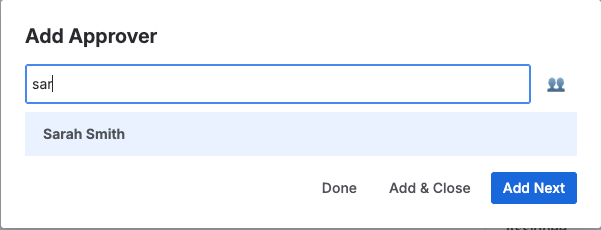
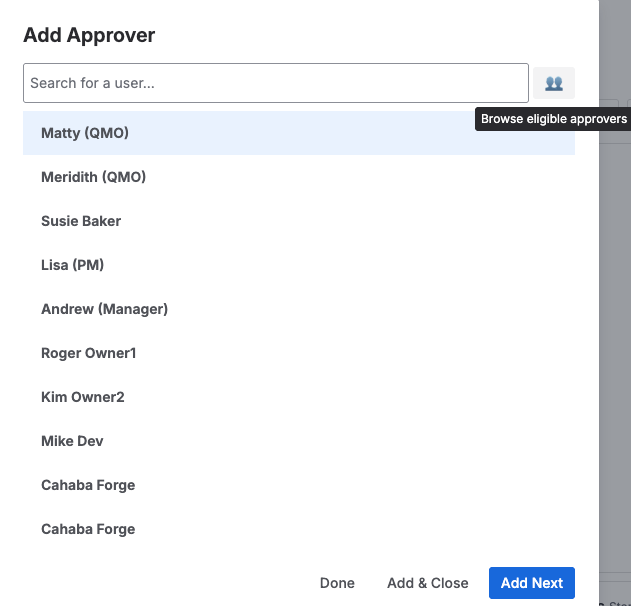
- Search for a user by name.
- Select the user from the result list.
Business Sign-off only shows users who are currently eligible based on project settings and current issue context. Depending on configuration, a user may be excluded because:
- they are not in an allowed project role
- they are not in an allowed Jira group
- they are the issue reporter and reporter SoD is enabled
- they are the issue assignee and assignee SoD is enabled
- their account is inactive
If you type fewer than two characters, the dialog waits for more input. If you want to browse eligible users without typing a search term, use the people icon button in the dialog.
Notify Approvers or Request Re-review
After approvers are added, the panel can send review notifications.
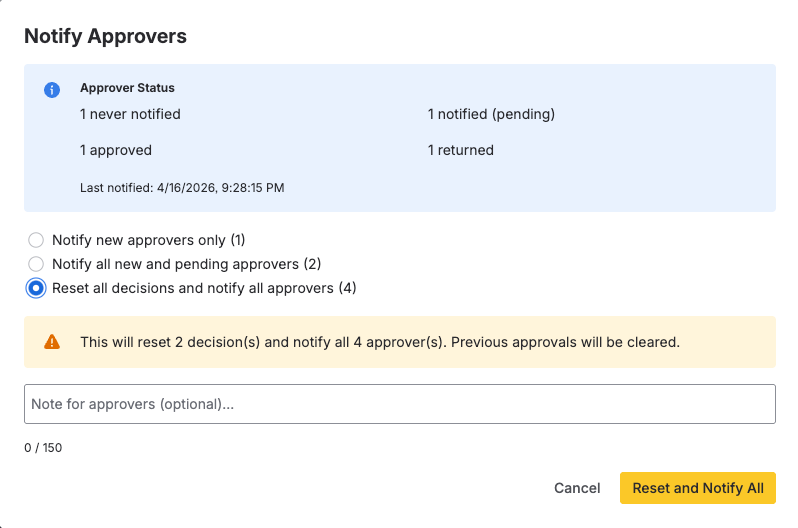
Open Notify Approvers to choose one of these actions:
- Notify new approvers only: sends email to approvers still in Added status and moves them into Pending
- Notify all new and pending approvers: sends email to all undecided approvers
- Reset all decisions and notify all approvers: clears existing decisions back to Pending and asks everyone to review again
The dialog also shows:
- how many approvers have never been notified
- how many are pending
- how many approved
- how many returned
- when approvers were last notified
- whether locked decisions will be skipped during re-review
You can include an optional note of up to 150 characters when notifying or requesting re-review.
Business Sign-off skips some same-day notification repeats. If an approver was already notified earlier that day, they may be skipped by the bulk notification action.
The Notify Approvers action is permission-based. In the current Forge implementation, it is intended for the issue reporter, issue assignee, or a Jira/project administrator.
Approve or Return an Issue
Only the approver themselves can record their own decision.
- Open the issue.
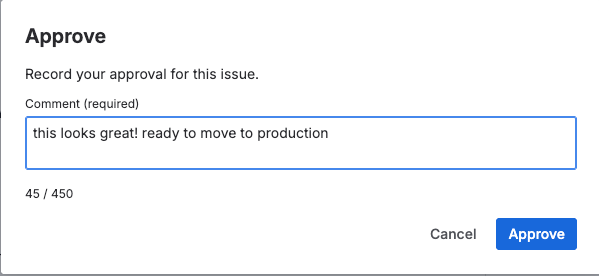
- In your approver row, click Approve or Return.
- Enter a comment if the project requires it.
- Submit the decision.
Comments are limited to 450 characters in the Forge version.
An approver cannot submit a decision while still in Added status. They must first be notified and move into Pending status.
Change or Withdraw a Decision
If project settings allow it, an approver who has already decided can click Change Decision.
From the change-decision dialog, the approver can:
- switch from Approved to Returned
- switch from Returned to Approved
- Withdraw the decision back to Pending
Important Cloud behavior:
- withdrawing a decision always requires a comment
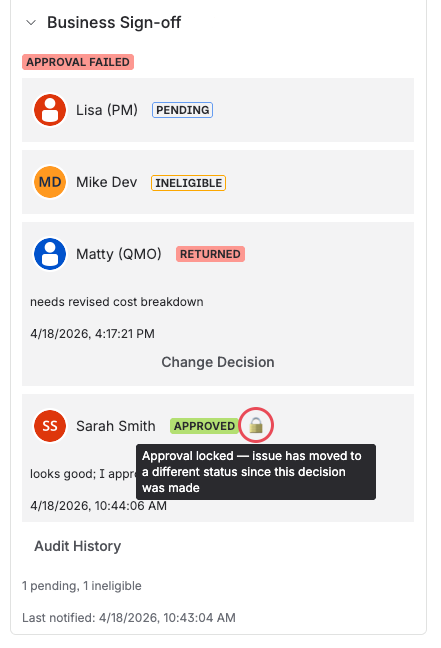
- approved decisions can be locked after an issue status change if decision locking is enabled
- returned decisions are not locked by the same status-change rule
If a decision is locked, the panel shows a lock indicator and the user cannot change it.
Remove an Approver
Users who can manage approvers can remove them from the issue panel.
- Find the approver row.
- Click Remove.
- Confirm the action.
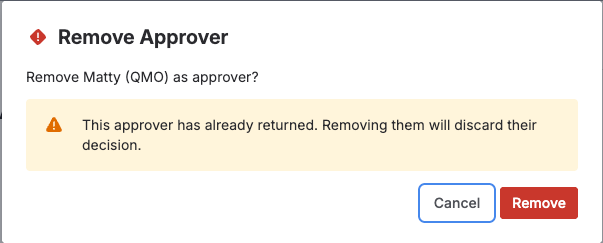
If the approver already approved or returned, the confirmation dialog warns that removing them will discard their recorded decision from the live approval state.
Review Audit History
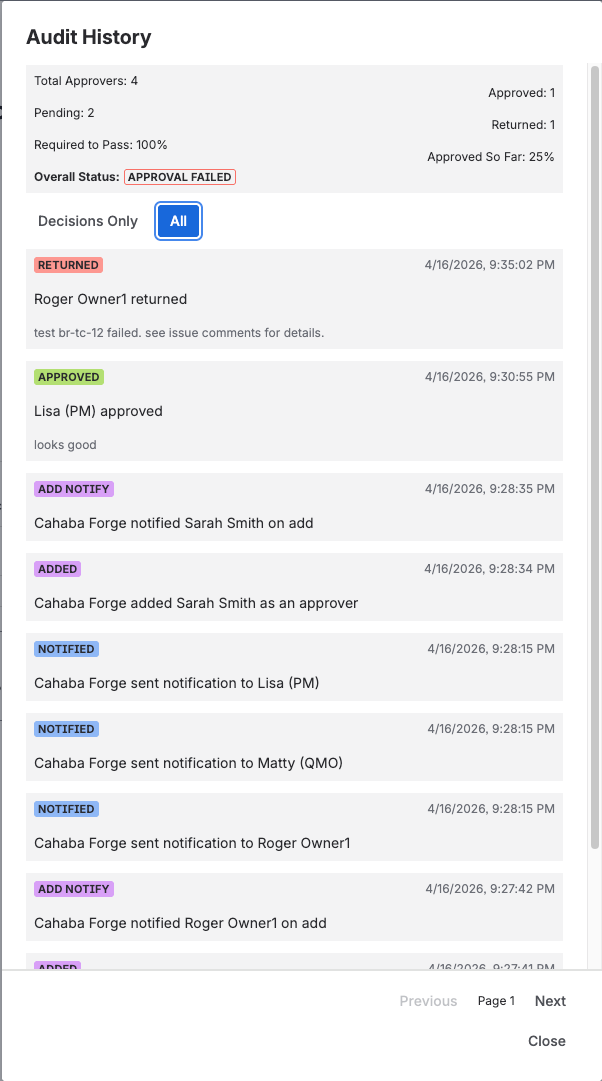
The issue panel includes Audit History, which opens an issue-level history modal.
The history modal shows:
- approval statistics for the current issue
- the current overall approval status
- paged history entries
- a Decisions Only filter
- an All filter
Depending on the issue history, entries can include:
- approver added
- approver removed
- approved
- returned
- decision changed
- decision reset
- notification sent
- reminder sent
- re-review requested
- approval status changed
Custom Fields, Search, and Reporting
The Forge version ships with two synced Jira custom fields:
- BSO - Approvers
- BSO - Status
These fields are updated by the app from live approval data. In the Forge version, they are read-only synced fields. They are not the primary place where users work with approvals.
Cloud behavior to note:
- the app no longer relies on custom JQL functions such as
bsoApprovers()orbsoStatus() - the main user workflow is the issue panel
- synced fields are primarily for Jira-native list views, dashboards, exports, and searching
BSO - Status
BSO - Status can be added to issue navigator views, dashboards, and reports. It shows one of these values:
- Not Started
- Awaiting Decisions
- Approval Passed
- Approval Failed
Example Jira Cloud JQL using the synced status field:
"BSO - Status" = "Approval Passed""BSO - Status" in ("Awaiting Decisions", "Approval Failed")"BSO - Status" is not EMPTY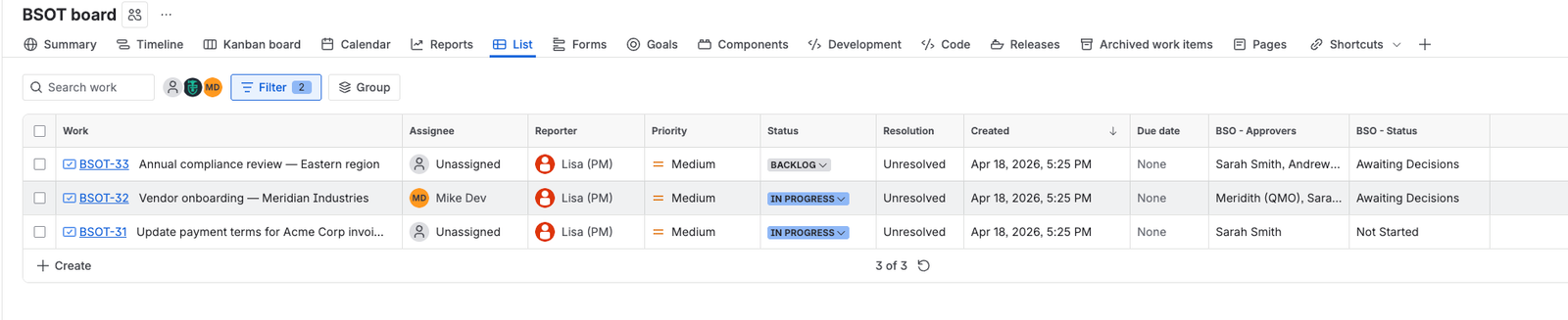
BSO - Approvers
BSO - Approvers is a read-only synced list of the current approvers on the issue. It is useful for visibility and reporting, but in the Forge version the actual approver-management workflow happens in the issue panel and through workflow post-functions. The field itself cannot be edited directly (issue edit screen, bulk edit, or REST API).
The create/edit-screen behavior in Jira Cloud is not the same as the old server-style custom field workflow. In the Forge version, the live approval workflow happens in the issue panel and through workflow post-functions.
Dashboard Gadgets
Business Sign-off ships two Jira dashboard gadgets that give you a personal view of approval work in progress. Both are scoped to you: they show only issues where you are involved, and each person sees their own results even when the dashboard is shared with a team.
Both gadgets show open issues only. For approval history, closed-issue reporting, or audit evidence, see Reporting on Closed Issues below.
Adding and Configuring Gadgets
To add a gadget:
- In the Jira left sidebar, expand Dashboards. Starred dashboards are listed directly underneath; use View all dashboards to find others, or the + beside Dashboards to create a new one.
- Open the dashboard and click Edit. The header switches to edit mode and shows Add gadget, Change layout, and Done.
- Click Add gadget to open the Add a Gadget panel on the right.
- Type BSO in the Search gadgets box.
- Click Add on BSO - My Approval Queue or BSO - My Approval Requests.
- The new gadget opens its configuration form straight away. Set the options and click Save. To accept the defaults, save without changing anything.
- Close the Add a Gadget panel and click Done to leave edit mode. Dashboard changes save automatically as you make them.
To change a gadget's options:
Gadget configuration is only available while the dashboard is in edit mode.
- Click Edit on the dashboard.
- On the gadget you want to change, open the ⋯ menu and choose Configure.
- Set the options and click Save.
- Click Done to leave edit mode.
The same ⋯ menu also offers Duplicate, Delete, and a Highlight color for the bar across the top of the gadget. Each gadget instance keeps its own settings, so you can add the same gadget more than once with different filters. A common setup is one copy filtered to a single project and another showing all projects.
Outside edit mode, each gadget header has controls to collapse, maximize, refresh, and copy a link to the gadget. The i icon shows a one-line summary of what the gadget lists.
A valid Business Sign-off license is required. If the license has lapsed, the gadget shows a license message in place of results.
Note: Atlassian periodically updates the Jira Cloud navigation. The exact menu labels and paths may vary slightly from what is described here.
BSO - My Approval Queue
Lists open issues where you are an approver. This is your personal approval inbox: the work waiting on your decision.
Each row shows:
| Column | Description |
|---|---|
| Type | The issue type icon |
| Key | The issue key, linked to the issue |
| Summary | The issue summary |
| Issue Status | The Jira workflow status |
| My Decision | Your status on this issue: Added, Pending, Approved, or Returned |
| Decided | Approvers who have approved or returned, out of the total approvers on the issue |
| Days | Days the issue has been in its current status |
Configuration options:
| Option | Choices | Default |
|---|---|---|
| Approval Status | Added (not yet notified), Pending (needs my action), Approved by me, Returned by me, All (any status) | Pending |
| Project | All Projects, or a single project | All Projects |
| Max Results | 10, 25, 50, All | 10 |
| Refresh Interval | Never, Every 15 Minutes, Every 30 Minutes, Every 1 Hour, Every 2 Hours | Never |
When you filter to a single project, the gadget title updates to include the project key. That makes multiple copies of the gadget easy to tell apart on the same dashboard.
BSO - My Approval Requests
Lists open issues you submitted that have approvers attached, along with the approval state of each one. Use this to track requests you are waiting on, as opposed to decisions you owe other people.
Issues with no approvers attached are not shown. Without approvers there is no approval request to track.
Rows show the same Type, Key, Summary, Issue Status, Decided, and Days columns as the approval queue, plus:
| Column | Description |
|---|---|
| BSO Status | The overall approval state of the issue: Not Started, Awaiting Decisions, Approval Passed, or Approval Failed |
Rows are expandable. Click the expand control on a row to see every approver on that issue and each one's individual status (Added, Pending, Approved, or Returned). Expand all and Collapse all controls apply to all rows at once.
Configuration options:
| Option | Choices | Default |
|---|---|---|
| Show issues where I am | Reporter, Assignee, Either reporter or assignee | Reporter |
| Approval State | Open (not yet decided), Returned, Approved, All states | Open |
| Project | All Projects, or a single project | All Projects |
| Max Results | 10, 25, 50, 100, All | 50 |
| Refresh Interval | Never, Every 5 minutes, Every 15 minutes | Never |
This gadget reads at most your 500 most recently updated issues. If your result set is larger than that, the gadget displays a message asking you to add a project filter to narrow the list. Note that setting Max Results to All returns everything within that 500-issue ceiling, not every matching issue in Jira.
Reporting on Closed Issues
Both gadgets are deliberately scoped to work in progress, so neither is the right tool for approval history, throughput reporting, or audit evidence.
For those, build Jira filters and dashboards on the BSO custom fields described in Custom Fields, Search, and Reporting:
"BSO - Approvers" = currentUser() AND "BSO - Status" = "Approval Passed" AND resolved >= -30d"BSO - Status" = "Approval Failed" AND project = PROJ AND updated >= -7dThose filters work with any standard Jira gadget, such as Filter Results or Pie Chart. Your Jira administrator can also export the full approval audit trail as CSV if you need formal evidence for an auditor.
Email Notifications
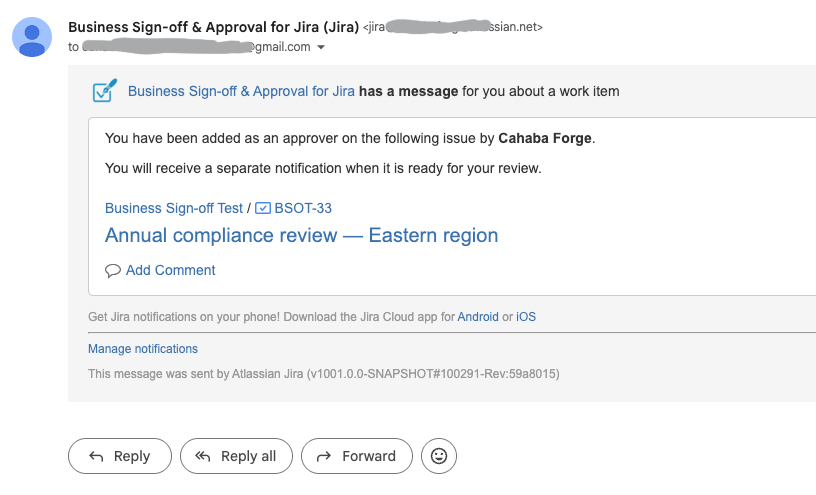
Depending on project configuration, Business Sign-off can send Jira Cloud email notifications for:
| Notification | When | Who Receives |
|---|---|---|
| Approver Added | When a user is added as an approver | The added approver |
| Approval Requested | When approvers are notified for review | New or pending approvers, depending on the action |
| Re-review Requested | When existing decisions are reset for another review cycle | All affected approvers |
| Approver Decision | When an approver approves or returns | Reporter and/or assignee, if configured |
| Approval Outcome | When the issue reaches Approval Passed or Approval Failed | Reporter and/or assignee, if configured |
Notification emails are sent through Jira Cloud's native issue notification API and include a link back to the issue.
Common Scenarios
Scenario: Change Approval Board
A team requires multiple approvers before an issue can move forward:
- Approvers are added from the issue panel or via workflow post-functions.
- Approvers are notified when the issue is ready for review.
- Each approver approves or returns the issue from the Business Sign-off panel.
- Workflow conditions or validators enforce the required approval state before transition.
Scenario: Regulatory Sign-off
A compliance-sensitive project needs stronger control:
- Eligible approvers are restricted to specific project roles or Jira groups.
- Separation of Duties prevents the reporter and/or assignee from approving.
- Comments are required on approvals and/or returns.
- The audit history on the issue captures the decision timeline.
- Administrators can export approval history from the global configuration page.
Scenario: Lightweight Review
A team wants visible sign-off without introducing a new workflow status:
- An approver is added from the issue panel.
- The approver is notified when work is ready.
- The approver reviews the issue and approves or returns it.
- The team tracks live state using the panel and BSO - Status field.
Troubleshooting
The Business Sign-off panel does not appear
Check these first:
- the app is installed and enabled globally
- the current project has Business Sign-off enabled
- the current issue type is included in project settings
- the issue is not excluded by the All Standard Issue Types rule for subtasks
- the project or global configuration is not in full disable mode
If the app is in Finishing Mode, the panel may remain visible only on issues that already have approvers.
I cannot add an approver
Common causes:
- you are not allowed to manage approvers on this issue
- the project is in finishing mode
- the app license is inactive and the panel is in read-only mode
- the user you searched for is not currently eligible because of role, group, SoD, or inactive-account rules
I cannot approve or return
Common causes:
- you are still in Added status and have not been notified yet
- project settings require Edit Issues permission and you do not have it
- you are no longer eligible to approve
- Separation of Duties prevents you from deciding
- your approved decision has been locked because the issue moved to a different workflow status
Notify Approvers did not email everyone I expected
The app skips some repeat notifications on the same day. If an approver was already notified earlier that day, the bulk notify action may skip them.
Jira asks for app access or an admin permission check seems wrong
The app uses Jira Cloud user-context checks for some administrator/project-administrator detection. If the required user consent is missing, Jira may treat the admin check as unavailable until access is granted again.
The app was updated and features stopped working after new permissions were added
If a new app version introduces new Forge scopes, a Jira administrator may need to approve the updated app access before all features resume normal operation.
The app shows a license warning
When the Marketplace license is inactive, Business Sign-off stays visible in read-only mode where possible. Existing history remains visible, but write actions such as adding approvers or recording decisions are blocked until the license is active again.
FAQ
Why does my approver row say Added instead of Pending?
Added means you have been assigned as an approver but have not yet been notified for review. Once a notification is sent, your status changes to Pending and the decision buttons become available.
Why does the Cloud guide say Return instead of Reject?
The Forge version uses Return as the decision label for sending work back for changes.
Can I use the old custom JQL functions from the server version?
No. The Forge version uses synced Jira Cloud custom fields and issue properties instead of the older server-style custom JQL functions.
Are the BSO custom fields editable?
No. In the Forge version, BSO - Approvers and BSO - Status are read-only, app-managed synced fields used for visibility, search, and reporting. They cannot be edited directly. Approvers are managed through the issue panel and workflow post-functions.
Where should users go for setup help?
Use the Administrator Guide for global setup, project configuration, workflow rules, audit export, and other admin-facing tasks.
For administrator setup instructions, see the Administrator Guide.
Cahaba Forge LLC | https://cahabaforge.com